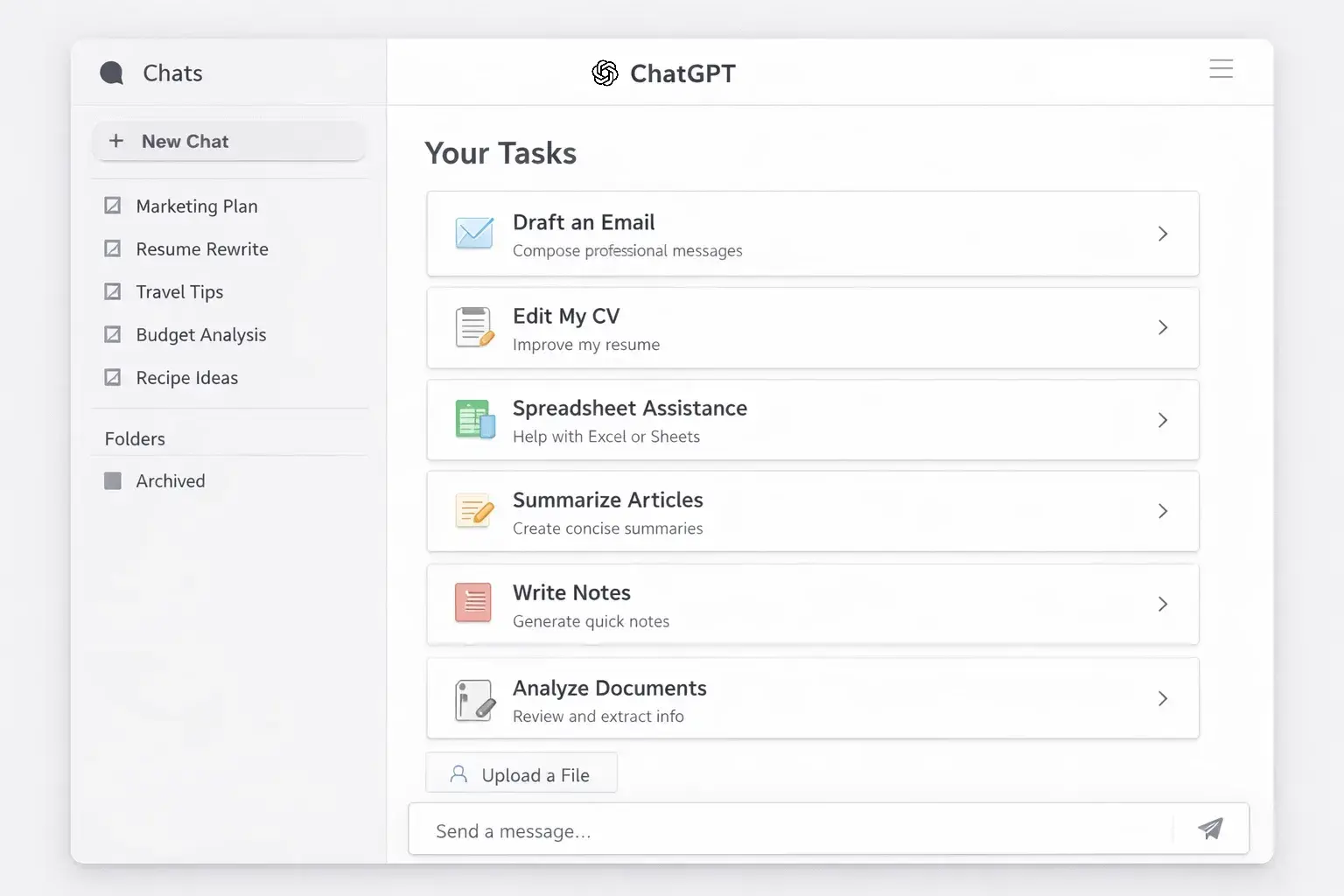
How to Use ChatGPT for Work: Emails, Resumes, Excel, and Daily Tasks
Learn how to use ChatGPT for work: emails, resume and CV editing, Excel and CSV analysis, document summaries, and daily admin tasks. Includes practical prompts, examples, and safer workflows for better results.
The best way to use ChatGPT for work is to start with your own draft, document, or spreadsheet, explain the audience and goal, set clear constraints, and ask for a specific output you can review before using.
How to use ChatGPT effectively for work
Most bad ChatGPT results come from vague input, not from the tool itself. In practice, ChatGPT works best when you give it source material, context, constraints, and a defined outcome.
Use this prompt structure for almost any work task
Whether you are fixing an email, editing a resume, summarizing a document, or reviewing a spreadsheet, the same structure usually produces better output.
State the task
Name the exact job in plain language: rewrite this email, improve these resume bullets, summarize this document, or review this spreadsheet for unusual changes.
Add the context
Explain who the output is for, why it matters, and what background the model needs to avoid generic wording.
Set constraints
Give tone, length, format, factual boundaries, and anything the model must not invent, remove, or change.
Ask for a deliverable
Do not end with 'help me'. Ask for a polished version, three options, a short summary, a flagged table, or a list of action items.
Bottom line
The fastest way to get useful output is not a clever prompt. It is a complete prompt.
Weak prompts vs prompts that produce useful work
The difference between generic output and usable output is usually the amount of context and constraint inside the prompt.
| Comparison point | Weak prompt | Better prompt | Why it works |
|---|---|---|---|
| Email rewrite | Write a professional email. | Rewrite the draft below for a supplier I already know. Keep it polite but firm, under 140 words, and end with a clear request for delivery confirmation by Friday. | It defines the relationship, tone, length, and outcome. |
| Resume bullet | Improve my resume. | Rewrite these experience bullets for a mid-level role. Keep the facts, remove filler, start each bullet with an action verb, and keep each line concise. | It narrows the work to a specific section with measurable rules. |
| Spreadsheet analysis | Analyze this file. | Review the uploaded spreadsheet, identify the top three revenue drivers, flag unusual monthly drops, and suggest one chart for a manager update. | It turns a vague request into a decision-focused analysis brief. |
| Document summary | Summarize this document. | Summarize the uploaded proposal for a busy founder. Give me the core idea, key risks, budget implications, and unanswered questions in plain English. | It defines the audience and what matters inside the summary. |
| Daily planning | Help me organize my day. | Based on the notes below, create a realistic plan for today from 09:00 to 18:00 with deep-work blocks, grouped admin tasks, and no more than five priorities. | It defines time limits, workload shape, and output format. |
How to use ChatGPT for emails
The best way to use ChatGPT for email writing is to start with your rough draft, even if it is ugly. A short draft with the right facts is usually more valuable than asking for a brand-new email from nothing. ChatGPT is especially useful for rewriting, shortening, changing tone, improving structure, and generating subject line options when you provide the context [1][2].
A simple workflow works well for most email use cases: write the messy version first, paste it into ChatGPT, explain who the recipient is, explain what outcome you need, and tell it what must remain unchanged. Then ask for two or three alternatives. One can be shorter, one warmer, one more direct. Choose the closest fit and edit it yourself before sending.
Use prompts like this:
Rewrite the email draft below.

Recipient: a client I already know
Goal: confirm next week's meeting and ask for two missing files
Tone: clear, friendly, competent
Length: under 120 words
Keep unchanged: the meeting date and the file names
Give me:
1. a polished version
2. a shorter version
3. three subject line options

Draft:
[paste your rough email]
This works well for follow-ups, internal updates, deadline reminders, polite refusals, supplier messages, and support replies. It works badly when the only instruction is 'make it professional'. That usually produces flat, generic wording because the tool still does not know who the email is for or what success looks like.
Best use case
ChatGPT is strongest on email structure and tone control when you give it the draft and tell it what must stay true.
How to use ChatGPT for resumes and CVs
ChatGPT is useful for resume and CV editing when you use it as an editor, not as a biography generator. It can tighten bullet points, remove repetition, sharpen summaries, and help align wording to a target role. It should not invent projects, technologies, achievements, metrics, or job responsibilities you did not actually have.
The safest method is simple: paste the target job description, paste the relevant section of your resume or CV, and ask ChatGPT to rewrite only what is already true. Good prompts mention the seniority level, the role focus, the skills that matter, and the maximum length of each bullet.
Use prompts like this:
Act as a resume editor.

Target role: [paste the role]
Seniority: mid-level
Task: rewrite the experience bullets below
Rules:
- keep every claim factual
- do not invent metrics, tools, or achievements
- remove filler words
- start each bullet with a strong verb
- keep each bullet concise
- optimize for clarity, not hype

Also tell me:
1. which bullet sounds weak
2. what is missing for this role
3. which wording feels too generic

Job description:
[paste the role]

Current resume section:
[paste the section]
This also works well for cover letter outlines, LinkedIn summaries, interview story preparation, and turning technical work into language a recruiter or hiring manager can scan quickly. The biggest mistake is asking ChatGPT to 'make my resume stronger' without saying stronger for what role.
Best use case
Use ChatGPT to sharpen wording and role fit. Do not use it to fabricate credibility.
How to use ChatGPT for Excel, CSV, and spreadsheets
This is one of the most practical work use cases. ChatGPT supports file uploads and data analysis workflows, which makes it useful for Excel files, CSV exports, and structured spreadsheets when you need a fast explanation, a summary, flagged anomalies, or a chart idea [2][3][4][5][7].
The main rule is to clean the sheet before upload. Clear column headers, one row per record, consistent date formats, and consistent values make a big difference. If the workbook is messy, export the relevant sheet to CSV first or isolate the tab that actually matters.
Once the file is uploaded, do not ask for a vague analysis. Ask a question tied to a real decision. That can be revenue by month, unusual drops by region, missing values, top categories, churn signals, hiring pipeline bottlenecks, or an executive summary for a manager.
Use prompts like this:
Analyze the uploaded spreadsheet.

I need:
1. a plain-English summary of what the dataset contains
2. the three biggest trends
3. any suspicious outliers or missing values
4. one chart recommendation for a manager update
5. a short action list based on the data

Then give me a second version focused only on risks.
Or this:
Review the uploaded CSV and compare month-over-month revenue by region.
Flag any region with a drop greater than 15%.
Explain only what is visible in the data.
Output:
- one summary paragraph
- one table of flagged regions
- one suggested chart
This use case is especially effective for sales exports, expense tables, operations logs, support metrics, survey results, product issue trackers, and recruiting pipelines. It is less effective when the file is unstructured, full of merged cells, or missing clear column meaning.
Best use case
Upload the file, ask a decision-focused question, and request a specific output. That works better than a generic spreadsheet review.
How to use ChatGPT to summarize documents and notes
Another strong evergreen use case is turning long documents into short, useful summaries. ChatGPT can summarize uploaded files, work with connected files from cloud apps, and help you pull out decisions, risks, deadlines, or missing information from large documents [2][3][5][6].
This is useful for meeting notes, client proposals, policy documents, research summaries, product specs, onboarding documents, and internal writeups. The biggest improvement comes from asking for the summary in the form your audience actually needs. A founder does not want the same output as an operations manager or a candidate preparing for an interview.
Use prompts like this:
Summarize the uploaded document for a busy manager.

I need:
1. what this document is about
2. the key decisions
3. open questions
4. risks or blockers
5. deadlines and owners if they appear
6. a five-line summary in plain English

If something is unclear, mark it as uncertain instead of guessing.
Or this:
Read the uploaded meeting notes and turn them into:
- a short summary
- an action list with owners
- a list of unresolved questions
- a version I can paste into Slack
The common mistake is asking for a summary with no audience and no format. That gives you a bland recap. Asking for decisions, risks, deadlines, or owner-based actions produces something much closer to real work output.
Best use case
Ask for the kind of summary you actually need, not just a shorter version of the same text.
How to use ChatGPT for daily tasks that quietly waste time
Not every useful workflow is dramatic. Some of the best productivity gains come from removing friction from repeated work. Projects are especially useful when you want related chats and files to stay together over time [6][7].
Think about the things you repeat every week: turning messy notes into a checklist, drafting a follow-up, rewriting something in clearer English, planning the day, summarizing a long page, or turning a pile of ideas into a structured outline. These use cases are small, but they compound.
Personal admin
Turn scattered notes into checklists, reminders, packing lists, shopping plans, or step-by-step action plans for one concrete errand.
Work planning
Create realistic daily or weekly plans, group shallow tasks together, and turn raw notes into priorities, deadlines, and owner-based action lists.
Reading and rewriting
Summarize a page, simplify dense wording, rewrite text for a different audience, or turn a long note into a short update.
Ongoing workflows
Keep a Project for one ongoing area such as job search, operations, reporting, or content planning so files and relevant chats stay in one place.
What this means
The biggest gain often comes from repeatable small tasks, not one giant prompt.
How to avoid generic AI-sounding output
People usually do not reject AI text because it is AI. They reject text that feels vague, inflated, repetitive, or disconnected from the situation.
Do not ask for 'professional' or 'better' without defining tone, audience, or context.
Do not start from zero if you already have a draft, a file, or notes.
Do not let the model invent metrics, achievements, dates, promises, tools, or names.
Do not send the first result without review.
Do not overpolish if your natural style is direct and plain.
Do not paste sensitive information unless your rules and risk posture allow it.
Bottom line
The cleanest way to avoid AI slop is to ask for a specific revision of real material, not a synthetic performance of intelligence.
A reusable ChatGPT prompt template for work
If you want one default format you can reuse across most work tasks, use this. It is simple, flexible, and much more reliable than one-line prompts.
Copy this template:
Task:
What exactly should ChatGPT do?

Context:
Who is this for and why does it matter?

Source material:
Paste the draft, notes, text, or describe the uploaded file.

Constraints:
Tone, length, format, facts that must stay unchanged, and things ChatGPT must not invent.

Output:
Ask for a specific deliverable such as:
- one polished version
- three alternatives
- one summary paragraph
- a table of flagged items
- a checklist
- action items with owners

Quality check:
Ask ChatGPT to mark uncertain points instead of guessing.
This format works because it covers the same pieces that humans use when they brief other humans: the job, the audience, the material, the boundaries, and the expected output.
Use this by default
A good prompt is usually not clever. It is complete, specific, and easy to verify.
FAQ
Start with real material such as a draft, notes, or an uploaded file. Then state the audience, the goal, the constraints, and ask for a specific output you can review.
Yes. It works best when you provide the rough draft, the recipient context, the desired tone, and the result you need, then ask for two or three alternatives.
Yes. It is useful for editing wording, structure, and role alignment. It should not invent achievements, tools, metrics, or responsibilities you did not actually have.
Yes. ChatGPT can work with uploaded structured files and help summarize data, spot unusual changes, and suggest charts when the data is organized clearly.
Yes. It is especially useful when you ask for a decision-focused summary such as key points, blockers, risks, action items, or unanswered questions.
Give it context, a defined audience, clear constraints, and source material. Then ask it to revise your draft instead of creating everything from scratch.
Only if your personal or workplace rules allow it. For sensitive work, remove unnecessary personal or confidential details before sharing text or files.
Sources
Need these workflows turned into something your team can reuse?
If you want more than one-off prompts, PAS7 Studio can help you turn scattered AI usage into reusable workflows: internal prompt libraries, safer review steps, reporting flows, content operations, and practical automation around the work your team already does.
Related Articles

How to Add Mau Saver to a Telegram Group and Save Media in Chat
A practical guide to adding Mau Saver to a Telegram group and downloading videos, audio, and posts directly in the chat.

How to Advertise to an International Telegram Media Audience
A practical guide for advertisers: reach an international Telegram audience through Mau Saver Bot, group placements, pinned posts, and native media integrations.
AI Assistant Development Cost in 2026: RAG Chatbots, CRM Integrations, Guardrails, and Support
A practical buyer guide to AI assistant development cost in 2026: prototypes, RAG chatbots, knowledge-base assistants, CRM and website integrations, guardrails, evaluations, monitoring, and support.

AI Can Make More. Not Better: What Game Development Research Actually Says
Generative AI is entering game production, but the evidence is more nuanced than the hype. We examine developer adoption, player reception, quality risks, and a practical production model for using AI without outsourcing taste.