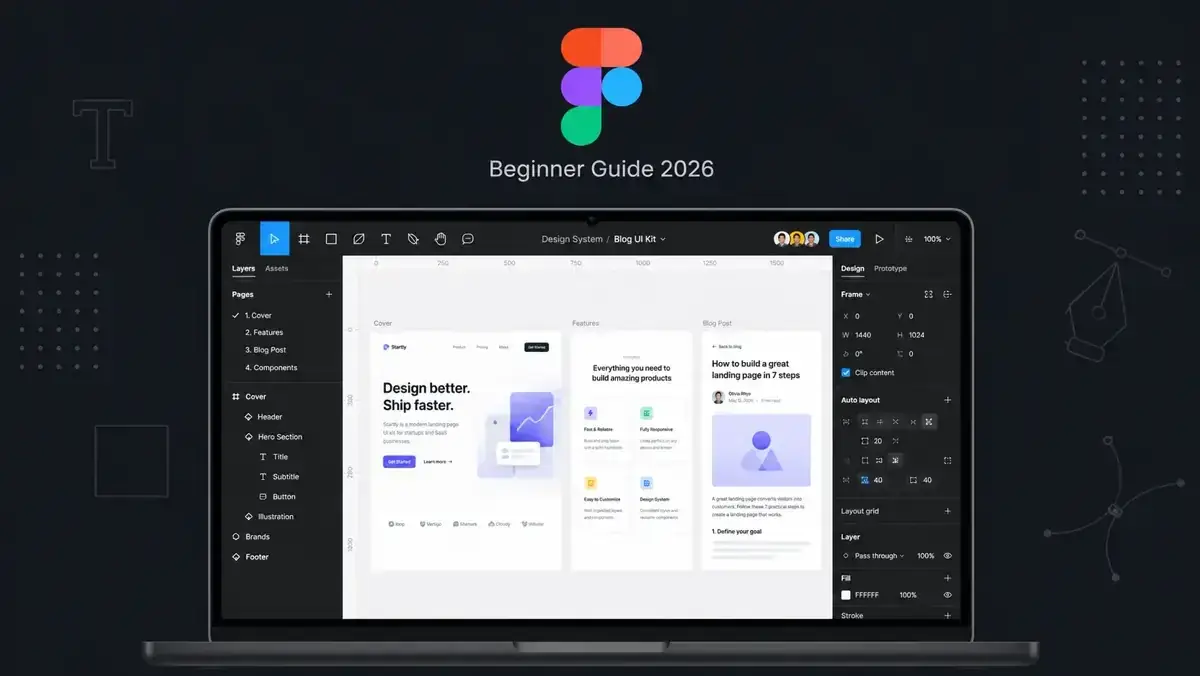
How to start Figma design in 2026: the beginner guide that matches the current Figma
A practical 2026 guide for absolute beginners who want to learn Figma from scratch. Covers the free Starter plan, the UI3 interface, the five core skills that matter, the best free courses, and plugins that make real design work easier.
The fastest path from zero to your first real Figma design
If you want the practical version first, this is the path I would follow in your first two hours.
Create a free Figma account and start on the Starter plan. You get three Figma files, three FigJam boards, and unlimited personal drafts, which is enough for months of practice. [1][2]
Take Figma's official 2025 beginner course. It has seventeen lessons, runs for roughly five hours, and walks you through shapes, text, frames, auto layout, components, prototyping, and a portfolio website project. [3][4]
Learn the five core skills in this order: UI3 navigation, Auto Layout, components with variants, prototyping, and developer handoff. Everything else can wait until these feel natural. [5][6][7]
Why Figma is the right place to start learning design in 2026
The design tool market has consolidated around Figma. For beginners, that matters because you want to invest your learning time in the tool that teams, tutorials, and job descriptions already use.
The practical reason is simple: Figma runs in the browser. You do not need a powerful laptop, you do not need to install a desktop app, and your files sync automatically. If you switch computers, you open a tab and continue. That removes a lot of the friction that used to make design tools harder to learn.
Figma also became more approachable for beginners after its 2025 pricing and seat updates. The free Starter plan gives you three Figma files, three FigJam boards, unlimited personal drafts, and unlimited viewers. That is enough capacity for learning, practice, and small personal projects before you need to pay. [2][18]
13M+ monthly
Figma has more than 13 million monthly active users. That means more tutorials, more community templates, more troubleshooting answers, and more real teams using the same tool you are learning. [12][13]
~95% Fortune 500
Figma is used by roughly 95 percent of Fortune 500 companies. If you are learning UI/UX for a career, this is the design tool many hiring teams expect you to understand. [14]
~41% share
Figma holds about 40.65 percent of the design tool market in available industry estimates, which places it ahead of traditional interface design competitors. [12]
Create your free account and learn the current UI3 interface
Figma retired the old UI2 interface in April 2025. That means many older tutorials still teach the right concepts, but their screenshots may not match what you see today. Start by learning the current UI3 layout.
1. Create a free Figma account
2. Open a new design file and explore the canvas
Create a new design file and look around before trying to design anything serious. The canvas is your main workspace. Draw a frame, add a rectangle, add some text, and move things around. In UI3, the toolbar sits at the top, the layers panel is on the left, and the properties panel is on the right. [5][19]
3. Understand frames, layers, and properties
Frames are containers for your designs. Layers show the structure of everything inside the file. The properties panel controls size, position, color, effects, layout, and export settings. Spend your first thirty minutes clicking through these areas. It sounds basic, but it builds the mental map you need for everything else. [3][20]
4. Open Dev Mode early
5. Rename your file and check version history
Figma auto-saves your work, but you should still name your file properly. Click the file name at the top, rename it, and look at version history from the file menu. On the free plan, version history is limited, but it is still enough to understand how recovery works when you break something. [2]
The five Figma skills that matter most for beginners
Figma has a lot of features, but you do not need all of them to become productive. These five skills form the foundation of real interface design work.
1. Auto Layout
Auto Layout is Figma's responsive layout engine. It behaves a lot like CSS flexbox inside a design tool. You place elements inside a frame, enable Auto Layout, and the frame manages spacing, alignment, padding, and resizing. If a button label gets longer, the button can grow with it. If you add a new item to a list, the list can expand predictably. Every serious Figma design system relies on Auto Layout, so this is the first advanced feature worth mastering. [5][22]
2. Components and Variants
Components are reusable design elements. If you turn a button into a component, you can reuse it across many screens and update every instance from one source. Variants let you keep different states together: primary, secondary, disabled, loading, hover, active, and so on. This is how teams avoid copy-paste chaos and keep large products consistent. [23][24]
3. Variables and Design Tokens
Variables store reusable values such as colors, spacing, typography sizes, and border radii. Instead of typing the same hex color again and again, you reference a variable. If the brand color changes, you update the variable once and everything connected to it updates. For beginners, the important habit is simple: start treating colors and spacing as reusable system values from your first real project. [25]
4. Prototyping
Prototyping turns static screens into a clickable experience. You connect one frame to another, choose triggers such as click or hover, and add transitions like dissolve, slide, or smart animate. You do not need complex animation to start. Build a simple two or three screen flow first. That is enough to show a client, teammate, or stakeholder how the interface should behave. [3][26]
5. Export and Developer Handoff
Designs usually need to become real interfaces. Export settings let you save assets as SVG, PNG, PDF, or other useful formats. Dev Mode helps developers inspect spacing, colors, CSS-like properties, and platform-specific details. As a beginner, your biggest handoff improvement is not a feature. It is file hygiene: clear frame names, organized layers, reusable components, and consistent spacing. [6][21][27]
The best free learning resources that still work in 2026
You do not need to pay for a course before you understand the basics. Figma's own learning ecosystem is good enough for your first month, and the community gives you plenty of free material after that.
Start with Figma's official beginner course. Published in May 2025, it includes seventeen video lessons and takes roughly five hours. It covers shapes, text, frames, Auto Layout, components, and prototyping through a guided portfolio website project. It also includes a downloadable Figma file, so you can follow along in the actual tool instead of just watching. [3][4]
Use Figma Community tutorials for specific gaps. The community library has thousands of free tutorials, templates, and practice files. Do not browse it randomly for hours. Search for one thing you need right now: advanced Auto Layout patterns, design system organization, mobile UI practice, prototyping examples, or portfolio layouts. [11][28]
Use YouTube carefully. Figma's own channel is useful because it reflects the current product direction. Independent creators can also be great, especially when they explain design decisions instead of only copying screens. The danger is tutorial paralysis. Watch one course, build one project, then look for targeted help only when you get stuck. [29][30]
For a broader list, the Untitled UI guide to free Figma courses is a useful reference. Use it after you finish the official beginner course, not before. Otherwise you will spend more time comparing courses than learning design. [30]
Six Figma plugins that actually help beginners from day one
Figma has thousands of plugins, but most are unnecessary when you are just starting. These six solve real beginner problems without distracting you from the core tool.
Stark
Stark helps you check accessibility issues inside Figma, including contrast and other usability problems. For beginners, the value is not only the plugin output. It teaches a critical design habit: a good interface is not just attractive, it must be readable and usable by more people. [8]
Unsplash
The Unsplash plugin lets you search and place free stock photos without leaving Figma. This saves time and helps you avoid the beginner mistake of pulling random images from the web without understanding usage rights. [9]
Content Reel
Content Reel fills your designs with realistic placeholder content such as names, dates, profile details, and text snippets. This makes mockups feel closer to real products and prevents every design from looking like a Lorem Ipsum template. [10]
Iconify
Iconify gives you access to more than 100,000 icons from many popular icon sets. Instead of hunting for SVG files manually, you can search, insert, and style icons directly in Figma. For beginners, this removes a lot of friction when building clean interface mockups. [32]
Magician
Autoflow
Autoflow helps you draw clean arrows and connectors between frames or objects. It is useful when you want to explain a user flow, map screen transitions, or show how a prototype moves from one step to another. For beginners, it makes flows easier to communicate without spending time manually drawing connector lines. [35]
The mistakes that slow beginners down the most
These are not rare edge cases. They appear in almost every beginner's first Figma files.
Naming nothing — Figma will happily leave your file full of layers called Rectangle 47, Frame 128, and Group 23. That works for five minutes, then becomes impossible to navigate. Rename important frames, components, sections, and reusable layers as you create them.
Avoiding Auto Layout — Manual positioning feels faster at the beginning, but it breaks as soon as text changes, cards resize, or the design needs to adapt. Start using Auto Layout early, even if it slows you down for the first few sessions.
Watching tutorials without building — The most common beginner trap is collecting tutorials instead of finishing a project. Watch one course, then immediately build something small with your own decisions. Real progress starts when you stop copying and start solving layout problems yourself.
Ignoring Dev Mode and handoff — If you never look at your design from a developer's point of view, you may create files that look good but are hard to implement. Open Dev Mode early. It will change how you name layers, organize components, and think about spacing.
Installing too many plugins too early — Plugins are useful, but they are also distracting. If you install thirty plugins on day one, you will spend more time exploring tools than learning design. Start with a few practical plugins and add more only when you feel a real workflow pain.
Polishing too early — Beginners often spend hours perfecting one screen before the flow makes sense. Start rough. Wireframe the structure, test the layout, then polish the visual style. That is how professional design work actually moves faster.
FAQ
No. The free Starter plan is enough to start learning. You get three Figma files, three FigJam boards, and unlimited personal drafts. That is enough for several practice projects. You only need a paid plan when you need more shared files, deeper collaboration features, team libraries, or longer version history. Students and educators should also check Figma's free education options.
For most beginners in 2026, Figma is the safest choice. Adobe XD is no longer sold as a standalone app and is widely treated as a maintenance-mode product. Sketch is still used by some teams, but it remains macOS-first. Figma is browser-based, cross-platform, community-heavy, and more common in modern UI/UX hiring requirements.
You can understand the basics in a weekend if you follow the official beginner course. Real confidence usually takes four to eight weeks of regular practice. The goal is not to memorize every feature. Focus first on UI3 navigation, Auto Layout, components, prototyping, and export or handoff. Those skills cover most beginner and junior-level design work.
Figma is the interface design tool. Use it for detailed screens, components, prototypes, and developer handoff. FigJam is the collaborative whiteboard tool. Use it for brainstorming, workshops, rough flows, sticky notes, and early ideation. Beginners usually start in Figma and use FigJam when they need to map ideas before designing polished screens.
Figma skill helps, but it is not enough by itself. Hiring teams also look for layout judgment, typography, color sense, responsive design thinking, accessibility awareness, and the ability to explain design decisions. Figma is the tool. Product and UI thinking are the actual skills. The best path is to learn Figma while building two or three complete portfolio projects.
Sources
Official documentation, product pages, community resources, and independent industry references checked on May 1, 2026.
Related Articles

How to Add Mau Saver to a Telegram Group and Save Media in Chat
A practical guide to adding Mau Saver to a Telegram group and downloading videos, audio, and posts directly in the chat.

How to Advertise to an International Telegram Media Audience
A practical guide for advertisers: reach an international Telegram audience through Mau Saver Bot, group placements, pinned posts, and native media integrations.
AI Assistant Development Cost in 2026: RAG Chatbots, CRM Integrations, Guardrails, and Support
A practical buyer guide to AI assistant development cost in 2026: prototypes, RAG chatbots, knowledge-base assistants, CRM and website integrations, guardrails, evaluations, monitoring, and support.

AI Can Make More. Not Better: What Game Development Research Actually Says
Generative AI is entering game production, but the evidence is more nuanced than the hype. We examine developer adoption, player reception, quality risks, and a practical production model for using AI without outsourcing taste.
Professional development for your business
We create modern web solutions and bots for businesses. Learn how we can help you achieve your goals.